Setting up Conditional Access shouldn’t be too complicated, it should be pretty simple, right? Just create a policy where the device needs to be compliant, or create one where the user is required to use MFA and then flip it on. Nothing should break, right?
Well yeah, but then you start walking around the office as fire engulfs the cubicles, meeting room cameras sign out, and end users start reciting MFA registration prompts like they’re possessed by Bill Gates, not to even mention the myriad of potential devices that just got locked out.
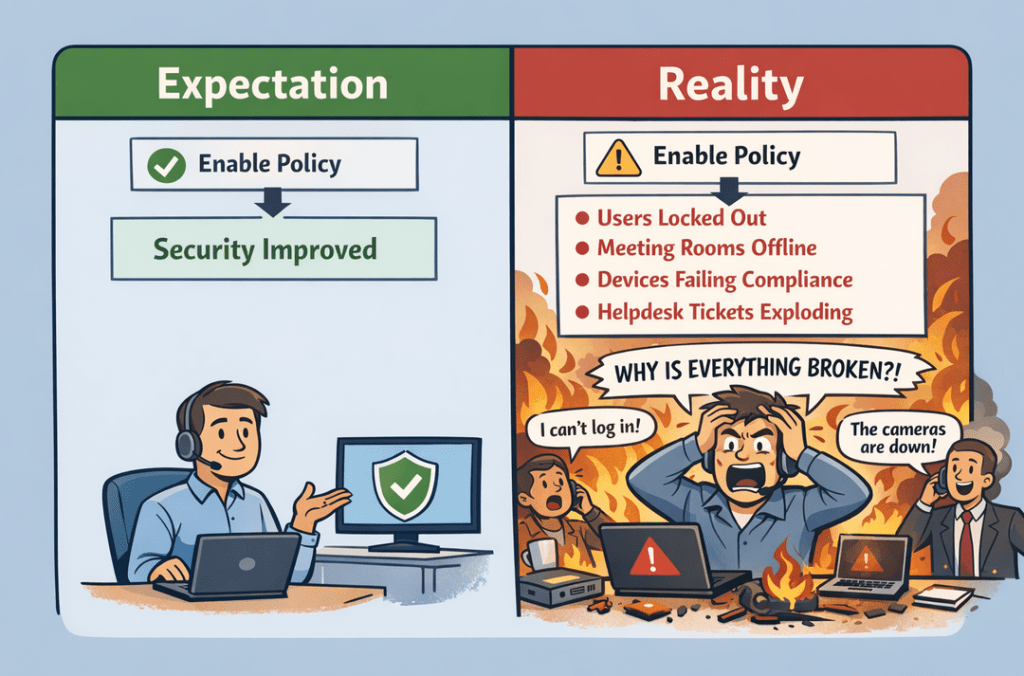
Conditional Access is a policy-based access control framework that’s relatively simple at its core, but its complexity stems from potential considerations and impact.
If you’ve ever written code or a script, you’ll likely be familiar with the concept of if-then logic.
If this laptop is Intune-joined, then allow the sign-in.
If this user is signing in from this IP range, then allow the sign-in.
If this user is accessing resources from a country other than Canada, then prevent their sign-in.
Given how more and more organizations are adopting cloud services like Microsoft Entra ID, this type of governance has become increasingly important for securing modern environments.
It’s no longer just about making sure employees are using their corporate devices properly. It’s also about ensuring that safeguards are in place to help prevent potential attacks or breaches before they can impact the environment.
The Meat and Potatoes of Conditional Access
So let’s dive into the actual meat and potatoes of conditional access.
You join an SMB. They have Microsoft 365, Entra, and all of that good stuff, but then you notice someone has Windows 8 installed on their PC. People are accessing apps that they shouldn’t be, and there are random sign-ins from somewhere in China.
Well, the good news is that you can set up policies to prevent access when these things happen.

You create policies that evaluate based on conditions like:
- User identity
- Device compliance or management state
- Geographic location
- Application being accessed
- Network or IP address
- Session behavior
Based on these conditions, you can enforce controls such as:
- Requiring MFA
- Blocking access entirely
- Allowing access only from compliant devices
- Restricting access to trusted networks
- Enforcing session restrictions (like read-only access)
Let’s say you’re a Windows-only organization and you want to make sure that no one can access resources from those pesky macOS devices. You can implement a policy that specifically blocks access to anyone who would be on macOS.
There’s a lot more you can do with conditional access at a granular level, but at it’s core it’s a pretty simple idea.
Why Conditional Access Matters
Okay, so you might be thinking: why does it matter if Bob wants to work off of Windows 8?
Well, you have larger problems than conditional access if you have Windows 8 devices in production, but conditional access provides several key security advantages and to be honest, they’re some pretty quick wins you can achieve if done right.
With applications increasingly moving to SaaS platforms like Microsoft 365, the identity system becomes the primary gatekeeper to your resources.
Conditional Access ensures that authentication alone is not enough. It requires context, which might just save your bacon in some instances.
Stolen Credentials and Modern Threats
Stolen credentials can be another consideration, as it remains one of the most common attack vectors in environments today.
Conditional access policies can mitigate this risk by requiring verification or blocking suspicious sign-in attempts, such as:
- Logins from unfamiliar countries may require MFA
- High-risk sign-ins can be blocked
- Access from unmanaged devices may be restricted
Additionally, modern-day environments rely heavily on remote access and BYOD policies.
Conditional Access helps enable companies to provide flexible access while still maintaining some semblance of security control.
Where Things Get Complicated
Now remember when I initially said that Conditional Access is a pretty simple concept but can get complex?
Implementing policies is an entirely different beast, as most companies layer conditions and controls.
Poorly designed policies that don’t factor in considerations might lead to situations where:
- End users get locked out by accident
- Security gaps are created by overlapping policies
- Troubleshooting access-related issues becomes more difficult
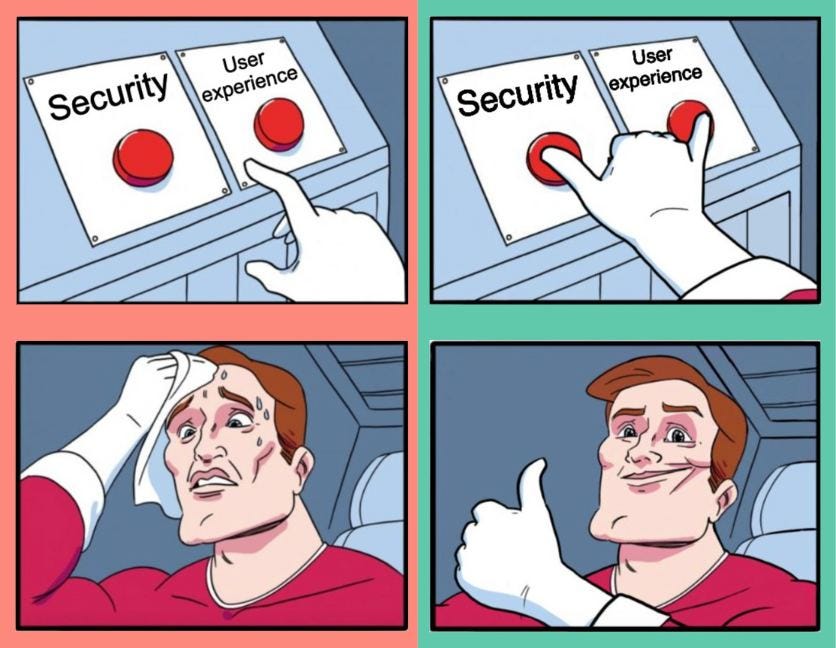
Additionally, this can ultimately affect the user experience, as excessive MFA prompts or overly restrictive policies can create friction and encourage workarounds.
Generally, you want to try to balance security and usability.
Testing and Rollout
No matter what, you should always be testing prior to rollout.
This way you can account for any considerations that you might have missed, or just any wonky things that might occur like a sign-in on a random Microsoft 365 app failing because it authenticates at the browser level and not the device level. Looking at you Office 365 Shell WCSS..
Fret not though, rolling out conditional access policies isn’t a massive burden and can be straightforward when done correctly.
The easiest approach is to:
- Turn policies on in report-only mode
- Remediate the failures
- Add users to an exclusion group and assign it to the policy
- Gradually begin removing users from the exclusion group
- Move toward phased enforcement
Key Design Considerations
Now this has been a pretty high-level overview of Conditional Access policies, but there are a few key considerations to keep in mind when you actually start implementing them. Most of these really come down to good policy design and making sure the right protections are applied in the right places.
Protect Administrative Accounts
Privileged accounts should always have the strongest Conditional Access protections.
These accounts often represent the most valuable targets for attackers. If someone manages to compromise an administrative account, the potential impact is significantly higher than a standard user account.
Some common best practices include:
- Mandatory MFA
- Restricted device access
- Limited sign-in locations
- Separate administrative identities
Applying stricter policies to privileged accounts helps reduce the likelihood that a compromised credential can turn into a much larger security incident.
Device Compliance
Conditional Access can also be used to enforce device posture, often through tools like Microsoft Intune.
Policies may require devices to be:
- Encrypted
- Running approved operating systems
- Managed by an endpoint management platform
- Free from known vulnerabilities
This approach ensures that device health becomes part of the access decision, rather than simply trusting any device that happens to have valid credentials.
Legacy Authentication
Legacy authentication protocols can be another weak point.
These older protocols often bypass modern security controls entirely, which means Conditional Access protections may never even be evaluated if legacy authentication is still enabled.
Disabling legacy authentication is therefore a critical step in strengthening identity security, especially in environments heavily reliant on cloud services.
My thoughts
At the end of the day, Conditional Access is one of those technologies that seems straightforward at first, but quickly becomes more complex once you start rolling out real policies in a real environment.
The concept itself is simple just evaluate a set of conditions and decide whether access should be allowed but the design, testing, and rollout are where most of the work actually happens.
When implemented thoughtfully, Conditional Access can provide some quick security wins by protecting identities, enforcing device standards, and preventing risky sign-ins before they become a problem.
And ideally, it also prevents that moment where you enable a new policy and suddenly find yourself walking around the office wondering why half the company just got locked out of their accounts.
 Ctrl+Alt+Route
Leave a comment