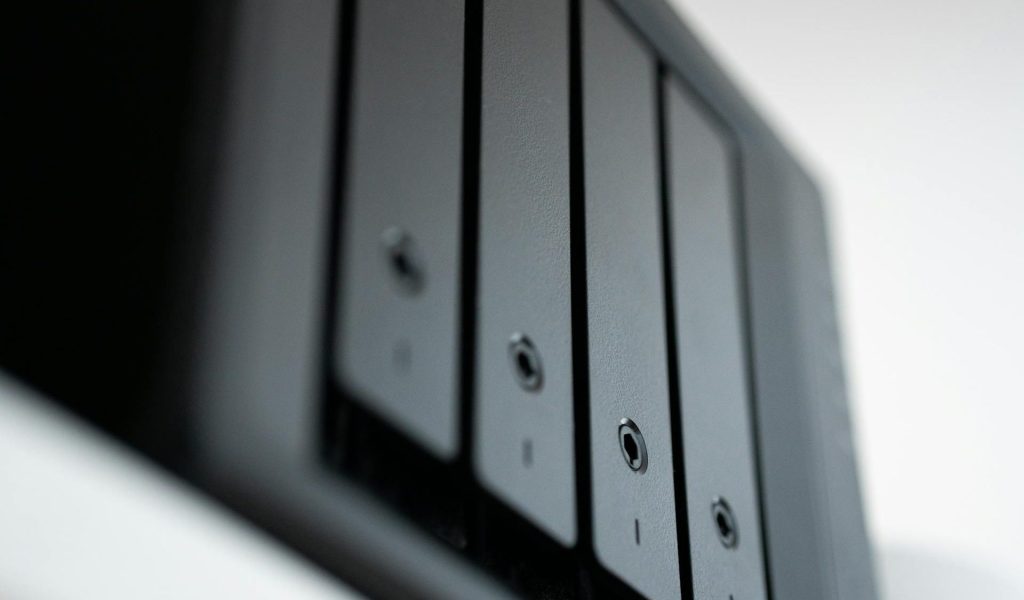
In a small office, having a common shared network drive makes collaboration easier, ensures consistency, and centralizes data storage and backup. In this post, I walk you through how to create a shared network drive, either using a NAS (Network Attached Storage) device or a Windows Server and highlight best practices around access control and backup.
Why Use a Shared Network Drive?
- Centralized storage: Instead of scattered files on individual workstations, a shared drive unites files in one place, simplifying collaboration and file management.
- Reliability & performance: With a properly configured NAS or server on your local network, access is typically faster and more stable compared to cloud-only solutions (especially for large files).
- Access control & security: You can control who sees or edits what. More secure and organized than “everyone shares the same folder.”
- Data protection and backup readiness: A shared drive enables regular backup procedures and redundant storage via RAID or server-based backup mechanisms.
Option 1: Use a NAS Device
Setting up a NAS is a popular choice for small offices thanks to its simplicity, cost-effectiveness, and flexibility.
What is a NAS – and why it works for small offices
A NAS is essentially a dedicated storage appliance connected to your office network. It presents shared folders that all users can access as if they were local drives.
Key benefits:
- Scalable storage, often via multiple drive bays.
- Data redundancy through RAID (or similar) — protects against single-drive failure.
- Fast local access over LAN (no internet dependency).
- Centralized backup capabilities, and often additional features like media serving, file versioning, and synchronization.
How to Set Up a NAS for Your Office
The follow steps are based on a standard rack mounted configuration:
- Prepare the hardware: install drives, connect power and network cables.
- Configure administrative accounts: change default credentials and create separate admin accounts if needed.
- Run diagnostics: ensure the NAS detects drives properly and is healthy.
- Configure storage architecture: choose your RAID or volume setup (e.g. mirrored, RAID-10, single volume, or departmental volumes).
- Create volumes / shared folders: organize storage based on how your business is structured (by team, department, project, etc.).
- Set up access permissions: define who can access which folders (share-level permissions, file-level permissions where supported).
- Network configuration: assign a fixed or static IP address (or DHCP reservation) and configure appropriate protocols (SMB, NFS, etc.) so client PCs can connect.
- Enable alerts/notifications: configure built-in alerts for disk failures, low space, or other hardware issues.
- Consider advanced options: e.g. designate hot-spare drives, enable caching or write-back cache, enable UPS support to safely shut down on power loss.
Once configured, users on the office network can map shared folders from the NAS as network drives on their computers — giving the feel of a local drive. This makes collaboration and file access intuitive.
Option 2: Use a Windows Server (or Windows-based File Sharing)
If your office already runs on Windows and you want tighter integration with user accounts (Active Directory), then setting up a shared network drive on a Windows Server (or even a Windows PC configured for sharing) is another viable path.
How Windows-based Sharing Works
On a Windows machine (for example, Windows Server, or a workstation serving as a file server), you can right-click a folder and then give access to specific people, and define which network users can access it (or set access to “Everyone”).
Once shared, users can map the shared folder as a network drive in File Explorer:
- Open This PC > choose Map Network Drive > assign a drive letter > enter the network path > finish.
- Optionally check “Reconnect at sign-in” to persist the mapping.
Sharing settings (and visibility) are governed by Windows’ network settings, you need to ensure Network Discovery and File and Printer Sharing are turned on.
Additionally, if you run a domain (e.g. Active Directory), you can manage permissions more granularly, assigning access based on user or group. Generally, there are two common methods of creating a shared network drive in Windows Server, either via shared folder + permissions, or via more advanced file-sharing services.
When Windows Sharing Makes Sense
- Your office already uses Windows Server or domain accounts.
- You want tight integration of permissions with existing user/group infrastructure.
- You prefer built-in Windows file-sharing and familiar workflows, especially for small teams that don’t need advanced storage management or RAID.
Access Control & Permissions: What to Keep in Mind
Whether you choose NAS or Windows-based sharing, controlling who sees or edits what is critical:
- Use user-specific accounts or groups: Avoid sharing with “Everyone” if possible. Instead, give access only to specific people or better yet, groups who need it.
- Separate shares by team, department, or project: If different departments should not see each other’s folders, create separate shared volumes/folders accordingly.
- Apply file-level permissions (if supported): On NAS: many appliances allow file-level permissions within shares. On Windows Server: you can use NTFS permissions for fine-grained control.
- Regularly audit permissions: Over time, people move roles — it’s good practice to review who has access to what.
- Use strong authentication & avoid default passwords: On a NAS, always change default admin credentials and consider creating separate admin accounts.
Backup and Data Protection – Don’t Skip This!
A shared drive is only as good as your backup strategy. Here are my recommendations:
- Use RAID (on NAS) or redundancy: If you’re using a NAS, configure drives in a RAID setup (e.g. RAID 10) instead of a simple single-disk volume. This helps tolerate a drive failure without data loss.
- Implement regular backup jobs: Even with RAID, use built-in NAS backup features (or third-party tools) to back up critical data, ideally to a second physical device or offsite/cloud storage.
- Use snapshots or versioning (if supported): Some NAS systems allow snapshotting or versioning of files, which can protect against accidental deletion or ransomware.
- Monitor health and alerting: Enable alerts for hardware failure, low disk space, or other warnings so you can act before disaster.
- Use UPS for power continuity: If possible, connect the NAS or server to an uninterruptible power supply. Power interruptions can corrupt data or cause disk failures. Many experienced builders of home/office NAS recommend a UPS to survive short outages.
Summary
Setting up a shared network drive, whether via a NAS or a Windows server, is one of the most effective upgrades you can make for a small office. It brings centralized storage, streamlined collaboration, better organization, and, when combined with good access control and backup policies, reliable data protection. Take the time to plan your folder structure, permissions, redundancy, and backup schedule from the start.
 Ctrl+Alt+Route
Leave a comment