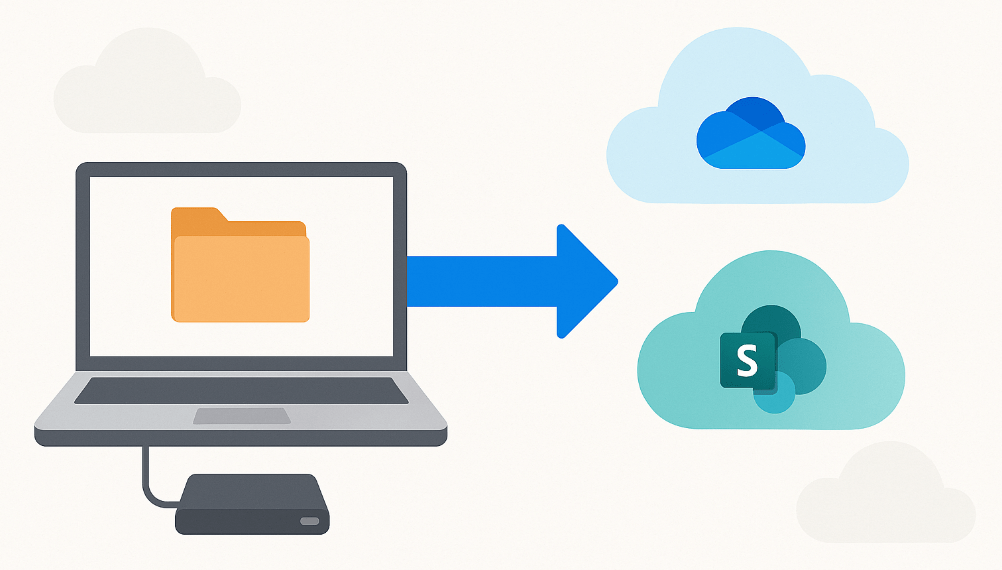
Migrating files is something every support tech and many end users will face at some point. Whether you’re replacing a failing hard drive, upgrading to a larger storage device, or transitioning from local storage to the cloud, knowing the right process makes the difference between a smooth transfer and a frustrating one.
This guide walks through the most common scenarios, migration methods, and best practices to keep your data safe, organized, and accessible throughout the move.
Why You Might Need to Migrate Files
Replacing or Upgrading a Drive
Hard drives and SSDs wear out over time. When installing a new drive or upgrading your existing storage, you’ll need to migrate your files (and possibly your OS) to avoid downtime and data loss.
Moving to OneDrive
Many organizations adopt Microsoft OneDrive for Business as their primary storage platform because of:
- Seamless syncing
- Access from any device
- Tight integration with Word, Excel, Outlook, and Teams
For users, this simplifies file access and backup without changing daily workflows.
Transitioning to SharePoint
SharePoint is designed for team collaboration, centralized document libraries, and controlled permissions. Migrating files here ensures teams work from a shared source of truth with versioning, metadata, and governance built in.
Migration Options
Local to Local (Drive to Drive)
1. Direct Copy/Paste
- Plug in both drives (internally or via USB enclosure).
- Copy files from the old drive to the new one.
- Best for smaller datasets or personal files.
2. Cloning Tools
Tools like Macrium Reflect, Clonezilla, or manufacturer utilities can clone an entire disk — OS, applications, and files.
- Ideal for system drive replacements
- Minimizes reinstallation and configuration time
3. Backup and Restore
- Back up to an external hard drive or NAS
- Restore onto the new drive
- Useful when reorganizing structure or cleaning up data in the process
Local to Cloud (OneDrive or SharePoint)
1. OneDrive Sync Client
- Install OneDrive
- Sign in with your Microsoft account
- Drag files into the OneDrive folder to start syncing
This is the most user-friendly method for individuals moving to cloud-based storage.
2. SharePoint Libraries (Synced to File Explorer)
- Use OneDrive to sync a SharePoint document library
- A new folder appears in File Explorer
- Drag files into it to upload automatically
This keeps the familiar Windows experience while storing files in the cloud.
3. Migration Tools
For larger, structured, or departmental migrations:
- SharePoint Migration Tool (SPMT)
- Mover.io (Microsoft service)
- ShareGate, AvePoint, or other enterprise tools
These preserve metadata, versions, permissions, and library structures.
Cloud to Cloud
OneDrive to SharePoint
Microsoft 365 allows files to be moved or copied between cloud services using:
- “Move to”
- “Copy to”
This keeps all content within the organization’s ecosystem. (within the OneDrive web interface.)
Cross-Platform Migration
For Google Drive to OneDrive, Dropbox to SharePoint, etc., use:
- ShareGate
- CloudM
- MultCloud
- Kernel Migrator
These handle permissions, timestamps, folder structures, and large-volume transfers reliably.
Best Practices for a Safe and Smooth File Migration
Audit and Organize First
Remove duplicates, outdated data, and unnecessary files. Migrating clutter only creates more clutter.
Check Storage Requirements
Verify that the destination has enough capacity before starting, especially important with cloud storage quotas.
Maintain Folder Structures
Keep naming conventions and hierarchy consistent. This reduces confusion post-migration.
Test Access and Permissions (Critical for SharePoint)
After uploading or migrating:
- Confirm users can access documents
- Validate group permissions
- Ensure sensitive files aren’t exposed
Back Up Before, Even for Cloud Migrations
Always keep a separate backup before any large migration. Mistakes, sync issues, or corrupted transfers can happen.
Verify After the Move
Open a handful of files from each major folder to ensure they:
- transferred correctly
- open without errors
- retained metadata or versioning (if applicable)
Summary
File migration doesn’t have to be complicated. With the right preparation, auditing your data, choosing the proper migration method, and verifying the results, you can ensure a smooth transition whether you’re moving to a new drive or into the Microsoft 365 ecosystem.
A little planning goes a long way toward protecting your data and reducing downtime.
 Ctrl+Alt+Route
Leave a comment