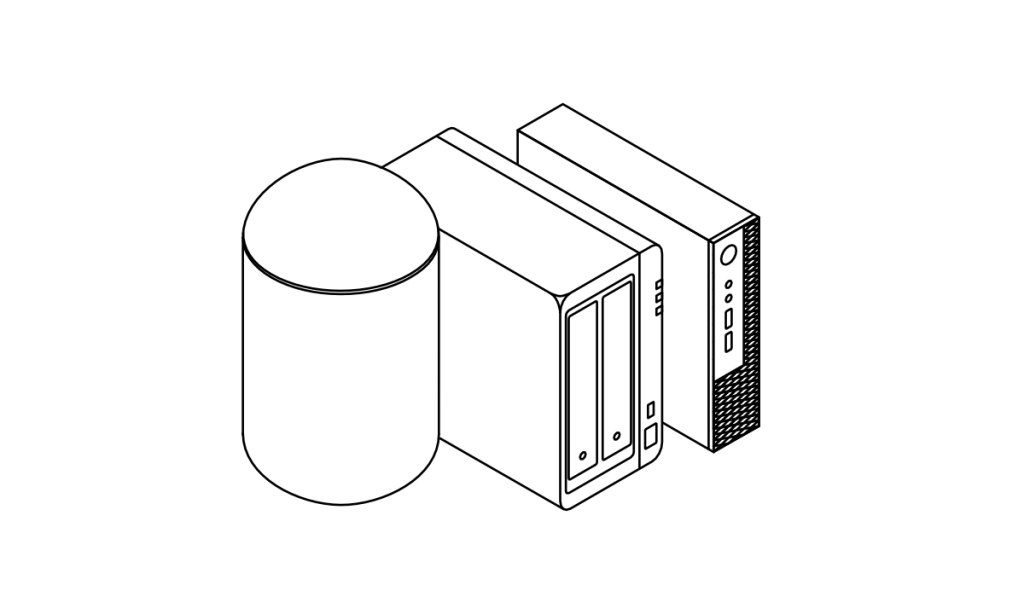
Building a home IT lab is one of the most effective ways to gain practical experience in networking, system administration, and other areas. Whether you’re preparing for certifications like Cisco CCNA, CompTIA Network+, Microsoft 365 Fundamentals, or you’re trying to land that first IT help desk position, hands-on practice makes a huge difference.
Fortunately, setting up a functional and flexible lab doesn’t require a big budget. With refurbished hardware, free software, and online resources, you can create an entry-level lab that supports real-world learning.
Step 1: Define Your Learning Goals
Before buying any equipment, identify what skills you want to build and what technologies you want to learn. This helps you choose tools that match your goals and avoid unnecessary purchases.
Some common entry level learning goals may include:
- Studying for certifications such as:
- Cisco CCNA – Networking basics, routing, and switching
- CompTIA Network+ – Foundational networking knowledge
- Microsoft 365 Fundamentals – Cloud services, email, Teams, and admin
- Learning Windows Server administration and Active Directory
- Practicing virtualization using platforms like Proxmox or VMware
- Setting up and managing network devices such as routers and switches
- Exploring cloud environments such as Azure and Microsoft 365
Step 2: Choose Budget-Friendly Hardware
You don’t need enterprise-grade servers or expensive switches to start. Refurbished business-class desktops or used enterprise gear are reliable and affordable.
Refurbished Desktop PCs
Look for small-form-factor (SFF) desktops from major brands:
- Dell OptiPlex 7040/7050 or HP EliteDesk 800 G3/G4
- At least Intel i5 or i7 (6th Gen or newer)
- Minimum 16 GB of RAM (upgradeable to 32 GB)
- 256 GB SSD or higher for faster performance
These models can be found on eBay, Facebook Marketplace, or other sites for relatively cheap.
Reference: PCMag – Best Refurbished PCs
Network Equipment for CCNA or Network+ Practice
If you want hands-on experience with real networking hardware:
- Cisco Catalyst 2960 switches – Around $40–70
- Cisco 2811 or 2901 routers – Around $50–100
Alternatively, you can use virtualization tools like Cisco Packet Tracer or GNS3 to practice without physical gear.
Reference: Cisco Networking Academy’s Packet Tracer Tool
Step 3: Use Free and Open-Source Software
There are many free tools available to simulate enterprise environments.
Virtualization Platforms
- Proxmox VE – Open-source hypervisor that supports VMs and containers
proxmox.com - VirtualBox – Beginner-friendly and runs on Windows, macOS, or Linux
virtualbox.org - VMware Workstation Player – Free for personal use
vmware.com
Operating Systems and Servers
- Windows Server 2022 Evaluation – Free for 180 days from Microsoft
microsoft.com/evalcenter - Ubuntu Server – Lightweight Linux for practicing sysadmin skills
ubuntu.com/server - pfSense – Free firewall OS for practicing routing, NAT, and VPN setup
pfsense.org
Tools for Microsoft 365 and Cloud Practice
- Microsoft 365 Developer Program – Free 90-day renewable dev tenant
developer.microsoft.com/microsoft-365/dev-program - Azure Free Tier – $200 credit for 30 days, plus limited free resources
azure.microsoft.com/free - Visual Studio Code – Lightweight editor for scripting and automation
code.visualstudio.com - PowerShell ISE or Windows Terminal – Learn scripting and remote management
Step 4: Set Up Your First Lab Scenarios
Once you have your hardware and software ready, start building simple labs that match your learning goals.
Example Scenarios
1. CCNA/Networking Practice
- Create VLANs on switches and trunk ports between them
- Configure static and dynamic routing (OSPF, RIP)
- Test ACLs and NAT using a pfSense VM
2. Microsoft 365 and Active Directory
- Install Windows Server in a VM and set up Active Directory
- Connect to your Microsoft 365 dev tenant using Azure AD Connect
- Explore user roles, licensing, email management, and endpoint security
3. System Administration
- Create a Linux VM with Ubuntu Server
- Install Apache/Nginx and configure firewall rules
- Learn how to automate with Bash or PowerShell
4. Virtual Network Practice
- Use Proxmox or VirtualBox to run multiple VMs on one machine
- Create isolated networks and route between them
- Deploy a virtual firewall with pfSense
Step 5: Keep Your Costs Low
Here are a few tips to save money while expanding your lab:
- Use local buy/sell groups (e.g. Facebook Marketplace, Craigslist)
- Join communities like r/homelab on Reddit for deals and advice
- Watch for sales on refurbished gear from Amazon Renewed or Newegg
- Reuse old laptops or desktops for basic services
Reference: r/homelab subreddit
A home IT lab is an excellent investment in your education and career, and it doesn’t have to be expensive. Start with a refurbished desktop, install a free hypervisor like Proxmox, and gradually build out your setup based on your goals.
Hands-on experience is what separates knowledge from understanding. With a bit of patience and creativity, you’ll be surprised how much you can learn—and how little you need to spend.
 Ctrl+Alt+Route
Leave a comment