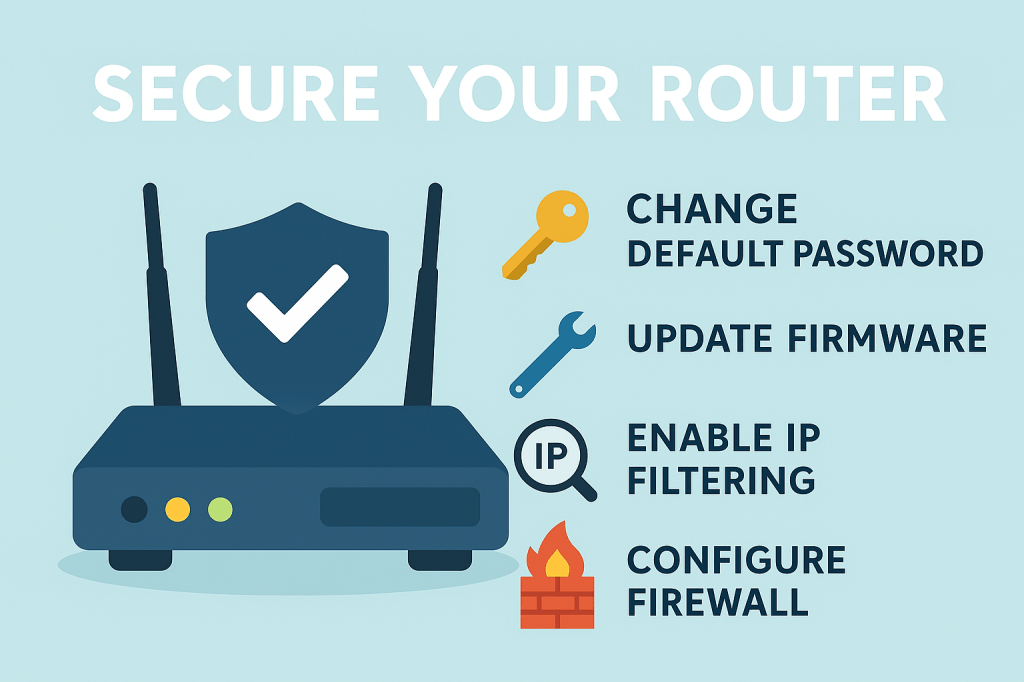
When setting up a new router—especially in a small office or home office (SOHO) environment—your first step should always be to change the default username and password. Default credentials grant full administrative access and are commonly known by attackers. Leaving them unchanged is like locking your front door but leaving the key under the welcome mat.
Keep Firmware Up to Date
Most SOHO routers use a closed architecture, meaning firmware updates must come from the manufacturer. These updates often include critical security patches, performance improvements, and new features. Regularly checking for updates and applying the latest firmware version is one of the simplest yet most effective ways to keep your network secure and running smoothly.
Filter Traffic with IP and Content Controls
Modern routers provide robust filtering capabilities to manage what enters and leaves your network. IP address filtering lets you create allow lists (only approved traffic gets through) and deny lists (specific domains, IP addresses, or URLs that should be blocked entirely). This ensures only trusted sources can communicate with your devices.
In addition to IP filtering, content filtering lets you monitor and restrict traffic based on what’s inside the data. This can include blocking certain websites, filtering categories like social media or adult content, and protecting against malware. It’s a useful feature for businesses, parents, and anyone concerned with safe and productive internet use.
Physical Placement Matters
Where you place your router can affect both security and performance. SOHO routers often combine several network components into a single device, which makes their physical location critical. It’s best to install the router in a secure room—especially if it’s in an office environment—to prevent unauthorized access. For wireless setups, ensure the device is centrally located so the signal reaches every area it needs to. Planning placement ahead of time can save a lot of hassle down the line.
Static vs. DHCP IP Addressing
Devices on your network need IP addresses to communicate. You can assign these dynamically using DHCP (Dynamic Host Configuration Protocol) or manually using static IP addresses. DHCP is easier to manage, especially for large networks, as addresses are assigned automatically. Static IPs, on the other hand, are useful for devices like printers or servers that need a consistent address. However, keep in mind that a static IP address doesn’t offer any real security advantage. If your network is unencrypted, an attacker can still easily detect it.
Using DHCP Reservations
To enjoy the flexibility of DHCP with the consistency of static IPs, consider using DHCP reservations. This method ties specific MAC addresses to specific IP addresses, so certain devices always receive the same IP without manual input. This is sometimes referred to as static DHCP or IP reservation and is a common best practice for key infrastructure devices.
Static WAN IP Considerations
Your router also connects to your internet service provider (ISP) through a wide area network (WAN) IP. Most ISPs assign these dynamically, which means your public IP can change over time. A static WAN IP, which stays the same, is easier to manage—especially if you’re hosting services like remote access or web servers. Some ISPs charge extra for a static IP, but it’s worth the investment for stability and simplicity in many cases.
Disable UPnP for Security
Universal Plug and Play (UPnP) is a feature that allows devices on your network to automatically discover and communicate with each other. While convenient, it can be a serious security risk. Applications on your internal network can open inbound ports without your approval, which is commonly exploited by peer-to-peer (P2P) software and malware. Best practice? Disable UPnP unless you have a specific, secure reason to keep it enabled.
Use a Screened Subnet for Public Services
If you’re hosting public-facing services, consider placing them in a screened subnet, also known as a DMZ (demilitarized zone). This adds an extra layer of protection between your internal network and the internet, allowing users to access public services like a web or email server without exposing the rest of your network to unnecessary risk.
SSID Management: Don’t Be Obvious
The SSID (Service Set Identifier) is your wireless network’s name. Avoid using defaults like “Netgear” or “Linksys,” which advertise the router’s brand and may invite unwanted attention. While hiding your SSID is possible, it doesn’t offer real security—tools can still detect it. Focus instead on strong encryption and changing default names to something unique.
Secure Wireless Channels and Encryption
Always use encryption on your Wi-Fi network. Open systems—those with no password or authentication—leave you vulnerable. For most SOHO setups, WPA2 or WPA3 using a pre-shared key (PSK) is sufficient. These protocols offer strong encryption with a 256-bit key. For enterprise environments, WPA2/3-Enterprise with authentication servers like RADIUS or LDAP adds an extra level of individual user control. Also, make sure your router is using a clear channel to avoid interference—many devices can auto-select this.
Guest Networks: Handle with Care
Guest networks are often enabled by default, offering a convenient way to separate traffic. However, they can also be a security gap—especially if unprotected. If you’re not actively using guest networking for devices like smart home gadgets or visitors, disable it. If you do use it, make sure it’s properly secured with encryption and limited access.
Disable Unused Physical Ports
Any open port is a potential entry point. Be selective about which physical ports you enable in conference rooms, break areas, or other locations. If a port isn’t in use, disable it through the router settings. Pair this with Network Access Control (NAC), particularly 802.1X authentication, to ensure only authorized users and devices can connect to your network.
Port Forwarding: For Services That Never Sleep
If you host services like web servers, IP cameras, or gaming servers, port forwarding allows external traffic to reach those internal resources. This process maps an external IP and port to an internal IP and port—these don’t need to match. Also known as Destination NAT, this setup lets you provide always-on access without session timeouts. Just be sure to configure it securely and monitor usage regularly.
 Ctrl+Alt+Route
Leave a comment