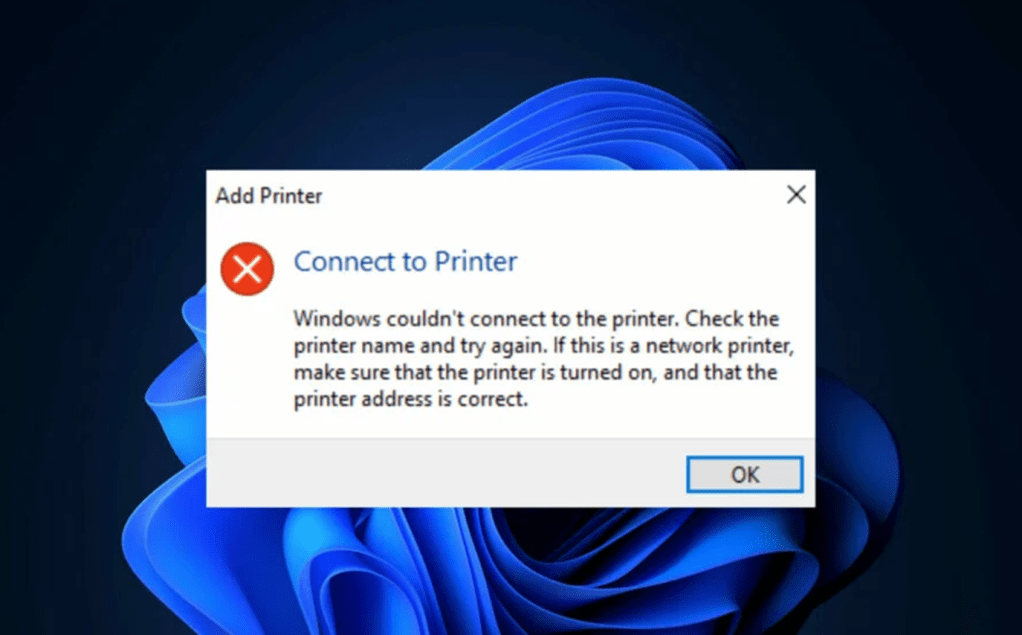
Printers are an essential tool within office environments, but like any other electronic device, they can occasionally run into issues that disrupt productivity. This can be frustrating, but it’s often fixable with only a few straightforward troubleshooting steps. In this article, we’ll walk through the process of identifying and resolving these issues so you can get back to printing without any delay.
1. Full Print Queue
If multiple users send print jobs to a single printer simultaneously, the print queue can become overwhelmed. When this occurs, the printer may stop responding, leaving all jobs stuck in the queue.
Troubleshooting steps:
- Open your services window and then locate “Print Spooler”, right click it and then click restart.
- If restarting the print spooler doesn’t work, open the printer queue and manually remove any stuck print jobs.
- Ensure the printer is powered on and properly connected (USB, Wi-Fi, network), additionally you can run the printers self-test or diagnostic tool.
- Restart your computer and printer. A simple reboot can sometimes resolve the issue.
- Update or reinstall any printer drivers, additionally you can uninstall then reinstall the printer if the issue persists.
2. Streaky or Blotchy Prints
Streaky or blotchy prints can be caused by several factors, most commonly because of low ink or toner levels, clogged print heads, using the wrong type of paper, misaligned print cartridges, or a dirty printer roller, which can lead to the uneven ink distribution on the page.
Troubleshooting steps:
- Check to see if your ink or toner cartridges are running low, as they may not be able to deliver a consistent amount of ink, resulting in streaks or blotches.
- Check your print head, most printers will have a maintenance option to check the print head and another to clean it. Selecting the option that checks the print head (or nozzle) will print a pattern that allows you to visually inspect if any print head nozzles are clogged by looking for missing lines or gaps in the pattern.
- Check to make sure you’re using the correct paper type. Glossy or thicker papers may lead to uneven ink absorption and blotchy prints.
- Inspect your print roller, often dust and debris can buildup on the printer rollers which can interfere with the paper feed and cause uneven ink distribution. Often times you can clean these rollers with a soft damp cloth, afterwards wiping it dry to remove any moisture.
- Inspect your print cartridges and ensure they are both properly aligned and not damaged, as both scenarios can cause inconsistent printing and ink flow.
3. Misaligned Text on Prints
Printers can print misaligned text due to a variety of reasons, often times it’s related to issues with the print head alignment, dirty or clogged ink cartridges, improper paper feeding caused by misaligned paper guides, low ink levels, or even a faulty printer drum which can lead to the toner not being placed correctly on the page.
Troubleshooting steps:
- Dirty or clogged print heads can cause uneven ink distribution which would lead to blurry or misaligned text. Most printers will have a maintenance option to check the print head and another to clean it.
- Check your print rollers and ensure that they are not damaged or worn out. Damaged or worn out rollers can cause paper to shift and become uneven during the print process. If you need to replace a roller, check online for your manufacturers recommendation.
- Check to make sure that your printer is feeding paper properly, often times misaligned paper guides can cause the paper to feed unevenly, leading to skewed printing.
- Check your ink cartridges as improperly installed cartridges and low ink levels can attribute to miss-aligned text due to the print head not aligning correctly with the cartridge.
- In some cases, your print head may just be out of alignment and fortunately most modern printers have a maintenance option that aligns the printer head.
4. Printer is Offline
A printer can appear offline due to a variety of reasons but most commonly it’s associated with issues related to connectivity such as a disrupted Wi-Fi connection, faulty USB cable, incorrect printer settings, outdated drivers, or the printer being accidentally set to “offline mode” on your computer.
Troubleshooting steps:
- Often times the main issue is the connection. You want to ensure and confirm that all USB cables are properly seated, that the network settings on the printer are correct, that the printer is ping-able from the PC and that it’s visible as a device on either your netshare or computer.
- Ensure that all of your printers drivers are up to date and not corrupted. In most cases you can download drivers from the manufacturers website.
- Check the printer settings, some printers have an offline mode which can be enable and disabled on the printer itself or within its software.
- Restarting your computer and printer can sometimes resolve any temporary glitches that may be occurring related to connectivity issues.
- Lastly, if all else fails and the printer still appears offline, uninstall and reinstall the printer software and drivers.
5. Failed Print Jobs
Printers can sometimes fail to complete a print job due to varying reasons usually including, low ink or toner levels, paper jams, connectivity issues, faulty printer drivers, incorrect settings on the computer, damaged internal components, or simply a problem related to the paper such as an incompatible size or type.
Troubleshooting steps:
- The most common cause of a failed print job tends to be low ink or toner levels, which often trigger a warning message on the printer.
- Paper jams are another pretty common factor related to failed print jobs, but fortunately most printers will display an error message indicting that a paper jam occurred. Quite often these jams are accessible and easy to resolve.
- Check the cabling and Wi-Fi signal as loose cables or a poor Wi-Fi connection can prevent the printer from receiving the print job.
- Check your printer drivers on your computer. If the printer driver is outdated or corrupted, your computer may not properly communicate with the printer.
- Check the internal components of the printer. Sometimes worn-out rollers, print-heads, or fuser units can lead to printer errors
- Check your printer settings and verify that the paper size, orientation, and other settings are correct.
- Sometimes a temporary problem may be occurring and a simple restart can help to resolve the issue.
 Ctrl+Alt+Route
Leave a comment