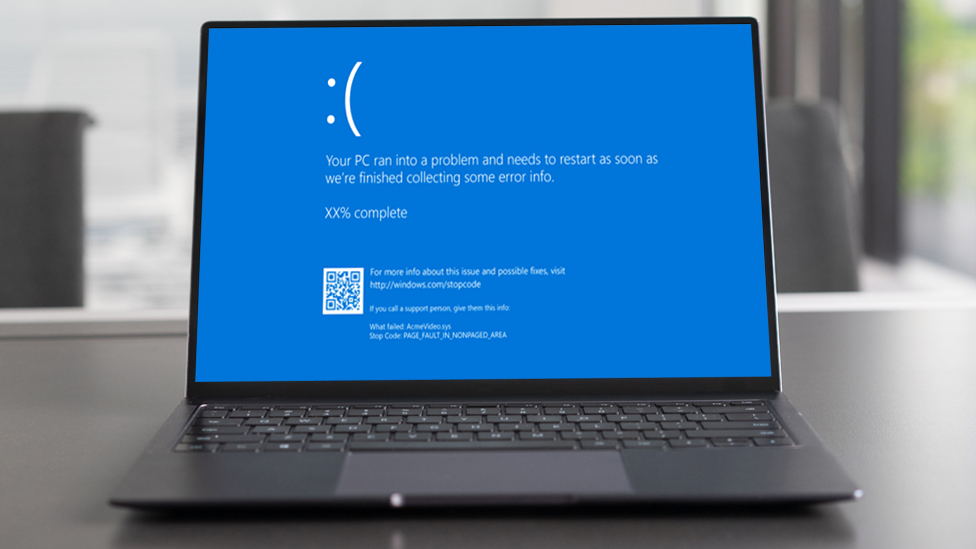
The Windows Blue Screen of Death (BSOD) is critical error screen that can appear on Windows when the operating system runs into a serious problem. This problem could be caused for any number of reasons such as:
- Hardware issue, such as a faulty power supply, RAM, or CPU.
- Software issues, such as a computer virus or corrupted files.
- Driver issues, such as outdated, corrupted, or incompatible drivers for hardware components.
- Storage failures or insufficient disk space, such as failing drives which can cause read/write errors.
- Windows updates, such as incompatibility issues introduced by new updates
To help determine the cause, the BSOD might display a stop code such as “PAGE_FAULT_IN_NONPAGED_AREA“. These stop codes are crucial in troubleshooting a BSOD as they can help to identify the issue and can assist us in preventing it from occurring again. Performing a simple google search of the stop code can typically yield a wealth of information on how to troubleshoot and resolve the issue.
Steps to Resolve Blue Screen Errors
- Remove any new hardware. if you recently added any new hardware to your system, shutdown your system, remove the hardware and then boot your system. Sometimes compatibility issues may occur when adding new hardware.
- Boot your system in safe mode. If you’re unable to restart your system, booting in safe mode may help. Safe mode only loads essential drivers, allowing you to identify the cause of your problems.
- Check your device manager. Right click your start button and then select Device Manager. Look for any devices with an exclamation mark ( ! ). Right click the device and then select update driver.
- Ensure there’s sufficient disk space. Your operating system and applications requires sufficient disk space to operate efficiently. Microsoft recommends having around 10% to 15% of free space available on your disk.
- Install the latest Windows updates. To install updates, go to your start > Settings > Windows Update and select “Check for updates”.
- Check the Event Viewer. The Event Viewer contains your system logs. Within the Event Viewer, you can look for critical errors or warnings in the system log that occurred around the same time as the BSOD.
- Restore Windows. If none of the mentioned steps help you to resolve your BSOD, consider restoring your system to a last known good backup or restore point.
 Ctrl+Alt+Route
Leave a comment